Unlock Your Smart TV: How to Use It as a Computer Monitor Wirelessly
This guide to use smart tv as computer monitor wirelessly explains the practical details worth knowing before you make your next decision.
Remember when a second monitor was a luxury? Now, many of us have a large, high-resolution smart TV sitting idle in the living room or bedroom. What if we told you that you could easily use that smart TV as a computer monitor wirelessly, expanding your workspace or creating an entertainment hub without extra cables? It’s more accessible than ever in 2026, and honestly, it can be a game-changer for productivity and media consumption.
We’ve been exploring ways to declutter our desks and maximize our existing tech, and the idea of using a smart TV as a computer monitor wirelessly is incredibly appealing. It means no more hunting for HDMI cables or dealing with tangled wires behind your desk. Let’s dive into how you can achieve this seamless connection and what you need to consider.
Table of Contents
use smart tv as computer monitor wirelessly: What You Need to Know
At its core, using your smart TV as a computer monitor wirelessly relies on sending your computer’s display signal over your home network or via a direct wireless connection. This technology has come a long way, and most modern smart TVs and operating systems have built-in support for some form of wireless casting or mirroring. The key is understanding which method best suits your setup. For most users, the goal is a stable connection with minimal lag, especially if you plan on doing more than just watching videos. Think about your primary use case: is it for presentations, casual browsing, or even light gaming? That will influence which technology you lean towards. We’ve found that the quality of your Wi-Fi network is paramount here; a weak signal can lead to choppy video or a delayed response, which is kind of wild when you’re trying to be productive.
Built-in Casting: The Easiest Route
Many smart TVs come equipped with protocols like Miracast, AirPlay (for Apple devices), or Chromecast built-in. If your computer and TV support the same protocol, this is often the simplest way to connect. For Windows users, Miracast is frequently the go-to. You’ll typically find the option under ‘Project’ or ‘Connect’ in your display settings. On macOS, AirPlay is seamlessly integrated, allowing you to mirror or extend your display to a compatible Apple TV or AirPlay-enabled smart TV. The beauty of these built-in solutions is that they require no extra hardware. However, performance can vary. We’ve noticed that while great for presentations or streaming, fast-paced activities might show a slight delay. It’s also worth noting that not all smart TVs support all protocols, so checking your TV’s specifications is a good first step.
Leveraging Streaming Devices for Wireless Connection
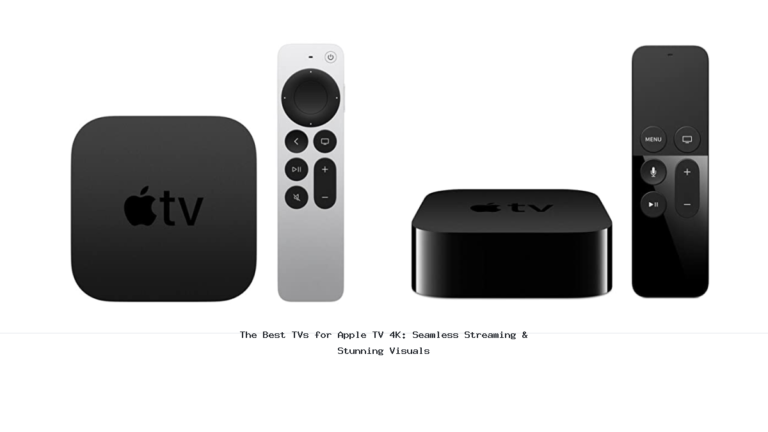
If your smart TV doesn’t have the built-in casting capabilities you need, or if you’re looking for a more robust solution, a dedicated streaming device can bridge the gap. Devices like a Google Chromecast, Amazon Fire TV Stick, or an Apple TV can receive content wirelessly from your computer and output it to your TV. For example, you can cast your Chrome browser tab or entire desktop to a Chromecast. Similarly, you can use AirPlay from a Mac to an Apple TV. The advantage here is that these devices are often optimized for streaming and can sometimes offer a more stable connection than relying solely on the TV’s internal software. Setting them up is usually straightforward: plug it in, connect it to your Wi-Fi, and then use your computer’s casting features to send content to the device. This adds a small piece of hardware, but the flexibility it offers is often worth it.
Dedicated Wireless HDMI Transmitters: For Performance
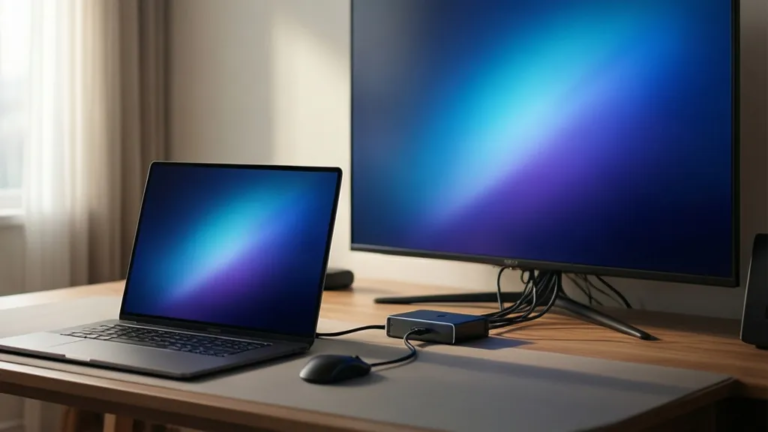
For those who demand the absolute best performance, especially for gaming or professional video editing where latency is critical, a dedicated wireless HDMI transmitter and receiver kit is the way to go. These kits create a direct, point-to-point wireless connection between your computer and your TV, bypassing your home Wi-Fi network entirely. This often results in a much lower latency and a more stable signal, even over longer distances within a home. The setup involves plugging the transmitter into your computer’s HDMI port (or using an adapter) and the receiver into your TV’s HDMI port. While these solutions offer superior performance, they are typically the most expensive option and require an additional hardware purchase. We would still check the specific latency ratings advertised by the manufacturer, as ‘low latency’ can mean different things to different brands.
Frequently Asked Questions
Will using my smart TV as a monitor wirelessly affect picture quality?
Generally, the picture quality can be very good, especially with modern TVs and strong Wi-Fi. However, compression is often used to send the video signal wirelessly. For most everyday tasks like browsing, email, and watching videos, the quality is excellent. For highly detailed graphic work or fast-paced gaming, you might notice a slight difference compared to a direct wired connection, particularly with built-in casting methods. Dedicated wireless HDMI kits tend to preserve quality the best.
What's the difference between screen mirroring and casting?
Screen mirroring, like Miracast or AirPlay, essentially duplicates or extends your computer’s display directly to the TV. Everything you see on your computer screen appears on the TV. Casting, often associated with Chromecast, allows you to send specific content (like a video from YouTube or a browser tab) from an app or browser to the TV. The TV then fetches the content directly, which can sometimes be more efficient and less demanding on your computer’s resources.
Do I need a fast internet connection to use my smart TV wirelessly as a monitor?
You need a strong home Wi-Fi network, but not necessarily a fast internet connection from your ISP. The data is primarily traveling from your computer to your TV over your local network. If you’re streaming content from the internet to your TV, then your internet speed becomes important for that specific task. But for simply using your TV as an extended display for your computer, a stable local network is the key. A router that supports 5GHz Wi-Fi bands can often provide a more stable and faster connection for wireless display.
When you revisit use smart tv as computer monitor wirelessly, start with the practical outcome you want to achieve.
Useful next reads for this topic include use flat screen tv as computer monitor and use TV as extra monitor.
Conclusion
There you have it – multiple ways to use your smart TV as a computer monitor wirelessly, transforming your viewing device into a versatile workspace or entertainment hub. Whether you opt for the simplicity of built-in casting, the flexibility of a streaming device, or the high performance of a dedicated wireless HDMI kit, the goal is a cleaner, more adaptable setup. We encourage you to explore the options that best fit your existing technology and your daily needs. It’s a fantastic way to get more out of the screens you already own in 2026.