Transform Your Living Room: Using a Flat Screen TV as a Computer Monitor
This guide to use flat screen tv as computer monitor explains the practical details worth knowing before you make your next decision.
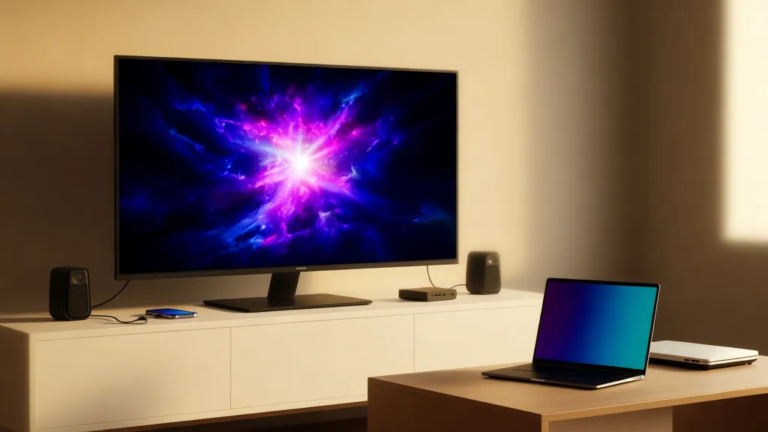
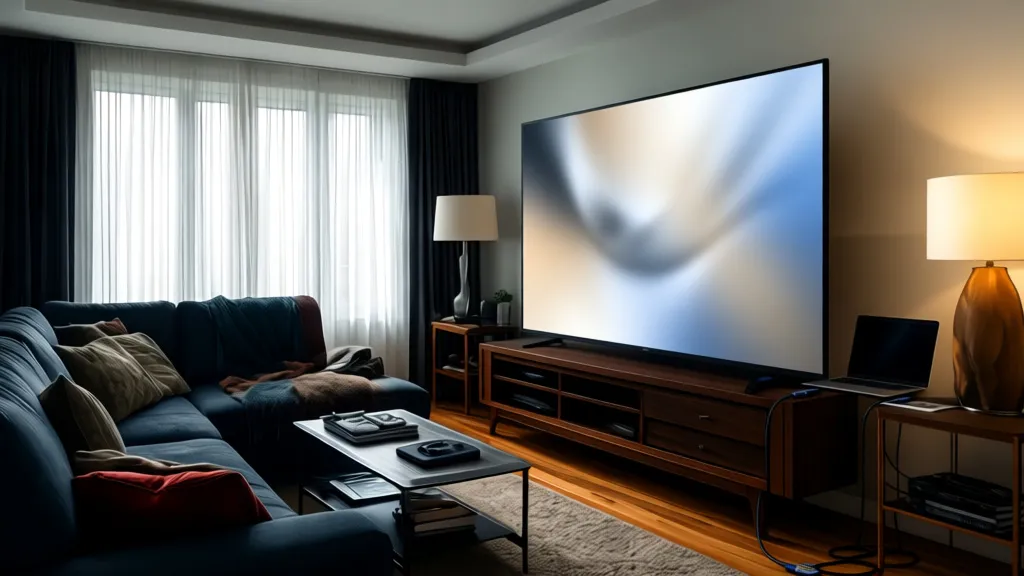
Okay, so you’ve got a big, beautiful flat screen TV sitting in your living room, and your computer monitor feels a bit… small. Honestly, it’s a question we get asked a lot: can you actually use that TV as a computer monitor? The short answer is a resounding yes! In fact, it’s become incredibly common, and for good reason. The large screen real estate can be a game-changer for productivity and entertainment alike.
We’ve found that many people hesitate, thinking it’s complicated or that the quality won’t be great. But here’s the thing: with modern TVs and computers, the process is usually straightforward. We’ll walk you through everything you need to know, from the physical connections to tweaking settings, so you can enjoy a much larger display for your daily computing tasks without a hitch.
Table of Contents
use flat screen tv as computer monitor: What You Need to Know
The first hurdle is getting your computer and your TV to physically connect. For most modern setups, this means using an HDMI cable. It’s the standard for a reason, carrying both high-definition video and audio signals in one neat package. You’ll find HDMI ports on the back or side of your TV and on your computer’s graphics card or motherboard. Just plug one end into your PC and the other into your TV. If your computer is older and lacks HDMI, you might need an adapter like DisplayPort to HDMI, but HDMI is definitely the easiest route if available.
Once connected, your TV should ideally be recognized automatically by your computer. If not, don’t panic. You might need to tell your TV to switch to the correct HDMI input using its remote. On the computer side, you’ll likely need to go into your display settings. We’ve found that sometimes, especially with multiple displays, the computer might not immediately ‘see’ the TV. That’s where adjusting the display mode comes in – we’ll cover that next.
Display Settings: Making Your TV Act Like a Monitor
This is where we tell your computer how to use the TV. Right-click on your desktop and select ‘Display settings’. Here, you’ll see your connected displays, usually numbered. Your TV will appear as one of them. You can choose to ‘Duplicate these displays’ (showing the same thing on both your monitor and TV) or ‘Extend these displays’ (making the TV an extension of your main monitor, giving you more desktop space). For using it as a primary computer monitor, ‘Extend these displays’ is usually the way to go.
Another critical setting is the resolution. TVs often have a native resolution (like 4K UHD at 3840×2160) that looks best. Make sure your computer is set to match this resolution for the sharpest image. You might also need to adjust the refresh rate, especially if you’re gaming or doing fast-paced work. While many TVs can handle 60Hz, some newer models support higher rates. We recommend checking your TV’s manual for its capabilities and then setting it in your PC’s advanced display settings. Getting these settings right is key to a smooth experience.
Audio and Text Clarity: Fine-Tuning the Experience
Don’t forget about sound! If you’re using HDMI, audio should automatically route to your TV. If you don’t hear anything, go back to your ‘Display settings’ and look for ‘Sound settings’ or ‘Manage sound devices’. Your TV should be listed as an output device, and you can set it as the default. Sometimes, you might want to use your computer speakers or headphones instead, which you can also select there.
One common concern is text clarity. Because TVs are designed for viewing from a distance, text might appear slightly softer than on a dedicated monitor. Most operating systems have tools to help with this. Windows has ‘ClearType Text Tuner’, which guides you through a series of screens to adjust how text looks. macOS has similar options under ‘Displays’ > ‘Text Smoothing’. We’ve found that running these tools can make a significant difference in readability for long work sessions, making that large screen much more comfortable for everyday use.
Potential Downsides and How to Mitigate Them
While using a flat screen TV as a computer monitor offers great benefits, there are a few trade-offs to consider. The biggest one is often input lag. This is the delay between when you move your mouse or press a key and when that action appears on screen. For general browsing and office work, it’s usually unnoticeable. However, for competitive gaming or precise video editing, it can be a real issue. Many modern TVs have a ‘Game Mode’ that significantly reduces input lag by disabling some image processing features. Always check if your TV has this feature and enable it when needed.
Another point is power consumption. Large TVs generally use more electricity than smaller computer monitors. If you’re concerned about your energy bill or environmental impact, you might want to be mindful of how long you leave the TV on. Also, consider the physical space – a large TV might dominate your desk area. We’ve found that for most users, the pros of a massive display for multitasking and media consumption far outweigh these minor drawbacks, especially with the right settings and features enabled.
Frequently Asked Questions
Can I use any flat screen TV as a computer monitor?
For the most part, yes! As long as your TV has an HDMI input and your computer has an HDMI output (or you have an adapter), you should be able to connect them. Older TVs might have limitations in resolution or refresh rate, but modern HDTVs and 4K TVs work very well. We always recommend checking your TV’s specifications for its supported resolutions and refresh rates.
Will the picture quality be as good as a dedicated monitor?
On paper, a 4K TV can offer more pixels than many standard monitors. However, dedicated monitors are often optimized for color accuracy and sharpness for close-up viewing. TVs are designed for viewing from a distance. You might need to adjust settings like sharpness and use text-smoothing features to get the best clarity. For general use, the quality is usually excellent, but for professional graphic design or critical color work, a calibrated monitor might still be preferred.
What is input lag and how does it affect me?
Input lag is the delay between your input (like moving the mouse) and the action appearing on screen. It’s most noticeable in fast-paced activities like gaming. If you plan to use your TV primarily for gaming, look for a TV with a ‘Game Mode’ or low input lag specifications. For web browsing, office work, or watching videos, input lag is rarely an issue.
Do I need special software to connect my TV?
No, you generally don’t need special software. Your computer’s operating system (Windows or macOS) has built-in display settings to detect and configure external displays like your TV. You’ll use these standard settings to extend or duplicate your desktop and adjust resolution and refresh rate.
When you revisit use flat screen tv as computer monitor, start with the practical outcome you want to achieve.
Conclusion
So there you have it! Using your flat screen TV as a computer monitor is a fantastic way to expand your digital workspace without buying new hardware. We’ve seen how simple connections via HDMI, careful adjustment of display settings like resolution and refresh rate, and a little fine-tuning for audio and text clarity can transform your computing experience. While potential issues like input lag exist, they are often manageable with features like Game Mode. Give it a try – you might just find that your living room TV is the perfect, expansive display for everything from spreadsheets to streaming.