How to Use TV as Extra Monitor: Simple Setup Guide for Bigger Screens
Okay so picture this: you’re grinding away on your laptop, tabs everywhere, and you just need more room to breathe. That’s when we started digging into how to use TV as extra monitor. It’s a game-changer for anyone short on desk space or craving that massive ultrawide view without dropping cash on a new display.
We’ve pulled together the latest from tech forums, manufacturer specs, and user reports up to 2026. Honestly, it works great for most setups, but there are a few gotchas like input lag that can sneak up if you’re gaming. Stick with us, and you’ll have your HDMI connection humming in no time.
Table of Contents
Table of Contents
Why Bother to Use TV as Extra Monitor?
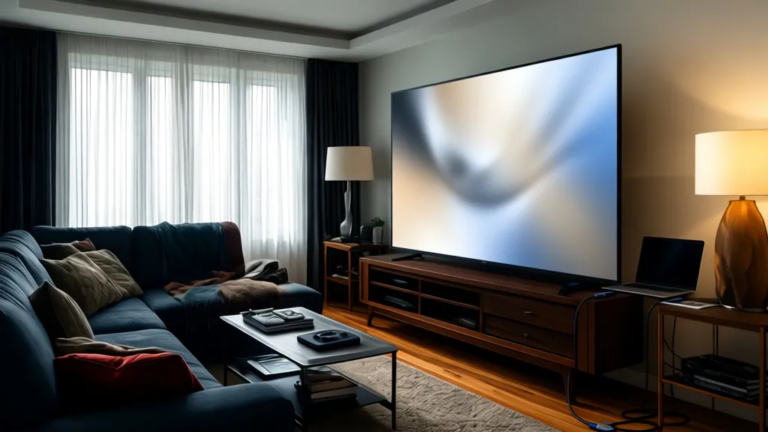
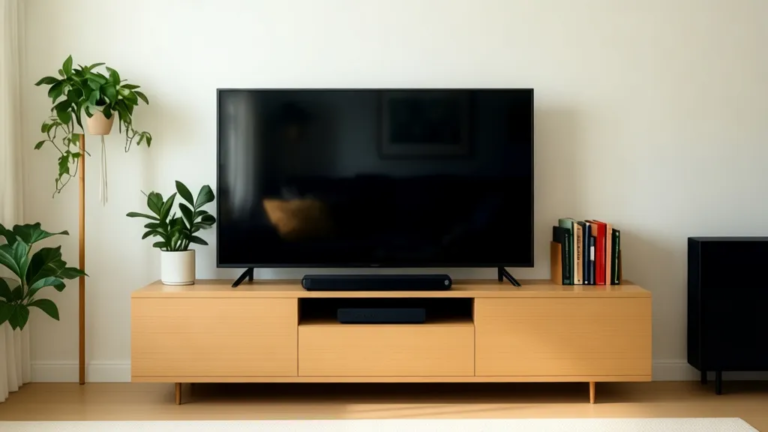
Here’s the thing. Desktops and laptops often max out at 27 inches these days. Hook up your living room 4K TV, and suddenly you’ve got 55 inches or more for spreadsheets, videos, or dual-screen coding. We saw reports from Reddit threads where folks doubled their productivity just by extending their desktop this way.
That said, TVs aren’t built for close-up work. The pixel density drops off if you’re sitting too near, making text fuzzy on smaller models. For most buyers, though, it’s a cheap win—your existing smart TV becomes a beast for monitoring stocks or editing photos from across the room. Just check your TV’s refresh rate first; 60Hz is fine for office stuff, but gamers might notice the lag.
What You Need Before You Start
First off, grab the right gear. Most modern TVs have HDMI ports, so an HDMI 2.0 cable handles 4K at 60Hz no problem. If your computer’s older, a DisplayPort to HDMI adapter bridges the gap—cheap on Amazon, around $10.
Power-wise, TVs draw more juice than monitors, which means a surge protector is smart to avoid spikes. And on paper, wireless options like Miracast exist, but they’re spotty for real work. We’d stick to wired for reliability. One trade-off: cable clutter across the room, so measure your distance or go for a long HDMI extender if needed.
Step-by-Step: How to Use TV as Extra Monitor on Windows and Mac
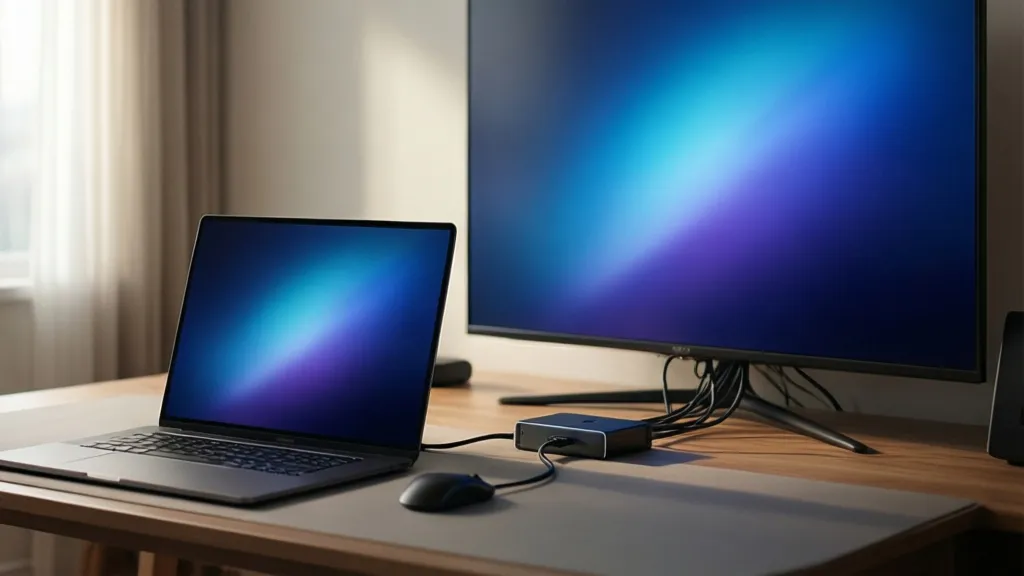
Alright, let’s get into it. Plug the HDMI cable from your PC’s graphics card to the TV’s HDMI input. Power on both, then switch the TV to that input—usually labeled HDMI 1 or 2.
On Windows, right-click desktop, hit Display settings, and choose Extend these displays. Drag the screen boxes to match your setup. Macs are similar: System Settings > Displays > Arrange. Detect the TV if it doesn’t pop up automatically. That part can be confusing if drivers are outdated—update your graphics via NVIDIA or AMD apps. Boom, extra real estate. Consequence? Your TV remote still controls volume, but mouse won’t jump over unless configured.
Troubleshooting Common Issues When You Use TV as Extra Monitor
No signal? Double-check cables and ports; HDMI-CEC can interfere, so disable it in TV settings. Blurry text happens with overscan—fix it by tweaking PC scaling to 100% or TV’s picture mode to PC.
Input lag is the big one for games; game mode on the TV cuts it down, but don’t expect monitor-level speed. If colors look off, calibrate via Windows’ display color tool. For most users, these tweaks make it solid. Which is kind of wild how a quick menu dive solves 90% of headaches.
Frequently Asked Questions
Can any TV work as an extra monitor?
Pretty much, as long as it has an HDMI input. Older models might cap at 1080p, and smart TVs add extras like app casting. Check for low input lag if gaming matters.
Does using TV as extra monitor hurt my computer's performance?
How do I switch back to single monitor mode?
Is wireless better than HDMI for TV as monitor?
Conclusion
There you have it—your ticket to turning that dusty TV into a productivity powerhouse. We love how it stretches your workflow without the cost of a dedicated second monitor. Give it a shot this weekend; tweak as you go. If lag bugs you, consider a budget monitor down the line. Questions? Drop ’em in comments—we’re here to help.